Showing posts with label Linux. Show all posts

Sunday, May 15, 2011

hearbeat...

Wow, been a while since I last posted anything over here (not that I've been regular at posting somewhere else either). Guess, I've been a running a little out of steam lately when it comes to writing stuff. It's not like I don't have anything to share off-late, it's just that I don't have the energy to blog about it these days - & that pretty much sums up how the life is meandering along all this while. So this post is pretty much a beacon just to let people know that I am still alive!

Anyway, I've been working on couple of "different" stuff off-late. On our ASP.Net website we've be using the built in In-Proc Cache to cache our data-objects and when you have a pretty decent cluster size, you run into data-consistence issue apart from having to figure out how to purge caches which are not scattered all over your web-farm. I've been thinking of getting some centralized caching engine for a while and after giving MS Velocity (or whatever it's called now) & Memcached a trial, I've decided to go with memcached along with the enyim client library. We haven't rolled it out on production yet, but in our Dev environment things actually look quite good - no exceptions, good Cache-hit rates. I'll post the entire experience with memcached and integrating with asp.net in a separate blog.

The other thing that technically, I've been looking into is reverse-proxying our web servers. I compared both Squid & Varnish, and zeroed in on Varnish based on the online material available. We already have Varnish set-up before our solr-slaves (because it's quite easy to configure varnish to do that and you get about 40-50% reduction in response times) on production, and we haven't seen any issues with it. Our Varnish cache-hit rates have been actually quite low ~around 30%, which is something that we need to look at - cause to benefit from a reverse-proxy, you would want to have your cache-hits to be around 60-70% on an average. One drawback with Varnish is the documentation available on VCL (Varnish Configuration Language) but I guess if you are clear about your caching strategy, it's not that hard to write one.
Varnishing solr is actually a piece of cake (as you don't have to worry about anonymous v/s authenticated users, session cookies, persistent cookies etc) but when it comes to Varnishing your public web-servers, things can get quite tricky. I'll post in detail, the experiences & things that I learned while Varnishing our web front-ends in another post. By the way, we've been running Varnish before the IIS on our dev environment and things have been looking quite alright so far.
One last thing on the technical stuff - we've been monitoring the performances of our memcached & varnish using munin - more on this in some other post as usual. I know this is lot of Linux stuff for a .net shop but the fact is - I didn't find any good Windows alternative for the above stuff which was free and proved itself to be quite scalable.

Moving on - as some of you would know, photography has been a hobby & a stress-reliever for me. On the photography front - after quite a bit of contemplation I got myself the Cactus triggers so that I can move my Vivitar 285HV off-camera. Well, so far they have been working like a charm. The first shot that I tried; armed with my new off-camera flash capabilities was freezing the water splash - and after 54 shots in the darkness, I did get on keeper -

lemonade!

I'll post about the setup and how I went about this in another post. The other news on the photography front is that I did manage to sell on of my images on fotolia (no I am not a millionaire yet!).

Lastly, I have started playing the guitar again - it's been so many years since I last strummed so it's like I am learning anew!

Well, that pretty much sums up what I've been up to all this while, hopefully, I'll be a little bit more frequent with my posting habits.

Friday, June 22, 2007

Look Ma, no sound!

Ever since I upgraded Dapper to Edgy, I have this weird issue of no sound in Vista (yeah, I know it sounds kinda unrelated but this is what I've zeroed in on). The problem is if I boot into Vista after a previous session in Edgy, there's no sound in Vista at all and the only way to restore the sound back is to reboot the system, looks like Edgy updates certain register values of the sound card which Vista is not able to understand. I don't know whether the bug is with Vista or Edgy; but given how fast MS folks are at fixing the "bugs" due to incompatibility with other OS, I'll most probs submit a bug with Ubuntu folks. Edit: Submitted the bug on Launchpad, here is the bug link; in case you're interested: https://bugs.launchpad.net/ubuntu/+source/alsa-lib/+bug/121674

In other news, Vista also doesn't recognize my Pan-digital photo-frame; and I don't see any drivers for Vista on their site either.

Sunday, January 14, 2007

Popping the first line from a file

Another trivial issue, how do you remove the first line (pop) of a file and read it's contents in a variable. Here's what I did:

head -1 somefile > sometempfile
set /p var=<sometempfile
echo %var%
tail +2 somefile > sometempfile
mv -f sometempfile somefile

I could have also used sed instead of head & tail, it would have been something like:

sed -n "1,1p" somefile (instead of head -1)
sed "1,1d" somefile > somotherfile (instead of tail +2)

The temporary file is required in XP for setting the variable value, cause XP batch files don't allow setting the variable to the output of another command, which is kind of lame!

Saturday, January 13, 2007

Getting contents of a file till some text

Some time back, I wanted to parse a web page to get some images from it (as part of my album art fixer), instead of writing a full blown c# application for it I decided I'll use do some QnD hack using linux shell commands (I use unxutils on windows). Retrieving the web page was easy using wget, I'd already done it for retrieving "A Brief History on Time". The problem was that I was only interested in parsing the file till some particular text, i.e. I wanted to ignore nearly half of the file. I tried sed but couldn't find anything working, so ended up doing it the long way by using grep, cut and head, something like:
<snip>

set var=
fgrep -i -n "ignore from here onwards" file.htm | cut -d: -f1 > rm.txt
set /p var=<rm.txt
head -%var% file.htm
</snip>

Does anyone know of a better way of doing this?

Friday, October 06, 2006

cut, curl and A Brief History of Time...

Recently I stumbled upon an online version of "A brief History of Time" by Stephen Hawking, I read this book long time back, perhaps too soon for my age. So decided I'll give it another shot, the only issue is I prefer paper books over online versions and even if I have to read an ebook, I generally like reading them in MS Reader (it's got few nice features like annotating, bookmarking, and drawing among others). I know there's a plugin for MS Word which allows converting any word document to MS Reader format, so if only I could get these HTMLs to a doc file, I just have to run that converter. The easiest approach is to open all the htmls in a browser, select all text and paste in a word document but that doesn't appear to be any challenging, so I thought off automating the entire process....


A cursory look on the url naming for this book, showed that files are named from a-n (for some reason n is the first chapter, then every chapter is a-m). So the easiest way to do it w.o. any third party tool was to use curl to save these documents locally.


$curl http://www.physics.metu.edu.tr/~fizikt/html/hawking/[a-n].html -o "hawking_#1.html"

This would fetch all the documents named from a-n and save them locally as hawking_[a-n].html.

Step 1 was quite easy, now the chapters also have images embedded for which we need to extract the image sources and save them locally again. Another look at the source html showed that all images are declared as <img src="..." > so using grep I extracted all the img tags in the html pages:

grep -o '<img src="[a-z0-9A-Z\.]*' hawking_*.html >> img.txt

So I extracted all the img tags and saved them to an output file, different story that the grep command took me nearly 3 hrs! I kept on forgetting to add the -o switch, without which the grep would spit out the entire html content, making me think that my regex was perhaps wrong. Anyway, once we had the grep sorted out, the next issue was to extract just the image names from the img src tags grep found, well that quite easy using the cut command:

cut -d\" -f2 img.txt >>wget.txt

Once we have all the img src path, we just need to use a final wget to fetch them:

wget -i wget.txt -B http://www.physics.metu.edu.tr/~fizikt/html/hawking/

(-B specifies the base url)

So far so good, so we have saved a local copy of the book with the images (different story that perhaps doing it manually would have taken lesser time).

Now we need to merge these htmls and convert them to a word document, here's a slightly tweaked version of macro in OO that I used:

Sub MergeAndSave(baseUrl)
'urls are a-n
dim i
dim ch
dim cUrl
ch = chr(110)
dim cFile
dim docFile
docFile = "/home/sachin/Hawking/hawking.doc"
cFile = baseUrl + ch + ".html"
cUrl = ConvertToURL( cFile )
oDoc = StarDesktop.loadComponentFromURL( cURL, "_blank", 0, Array(MakePropertyValue("FilterName","HTML (StarWriter)") _
, MakePropertyValue("Hidden",False))

cURL = ConvertToURL( docFile )

oDoc.storeToURL( cURL, Array(_
MakePropertyValue( "FilterName", "MS WinWord 6.0" ),)
oDoc.close( True )

Dim oFinalDoc, oCursor,oText
oFinalDoc = StarDesktop.Loadcomponentfromurl(cURL, "_blank", 0, Array())
oText = oFinalDoc.getText
oCursor = oText.createTextCursor()
for i = 97 to 109
ch = chr(i)
cFile = baseUrl + ch + ".html"
cUrl = ConvertToURL( cFile )
oCursor.gotoEnd(false)
oCursor.BreakType = com.sun.star.style.BreakType.PAGE_BEFORE
oCursor.insertDocumentFromUrl(cUrl, Array())
next

'oFinalDoc.close(True)
End Sub


Unfortunately, I only have MS Word 2007 Beta installed on my Win Box, so I couldn't convert the doc to Reader format but I know it works as I'd converted a word doc earlier. Oh, by the way the same process could have been accomplished by ditching everything and passing the url of html directly to the oo macro or if you really really wanted to use some linux cmd then
wget allows you to fetch multiple pages by following links (though am not too sure whether that would work for img tags).
Moral of the story: at times we learn few things which we didn't need to learn then but maybe we'll find them to be useful sometime down the line.

Sunday, September 03, 2006

Sled Menu on Ubuntu Dapper and other stuff


I've been hearing a lot about SLED off-late and the fact that it's menu has been ported to Ubuntu, so I decided I'll give it a shot. The installation was quite easy, I followed the instructions from Angelic Penguins and got it up and running in a matter of 5 minutes. I won't say this is the best thing that could have happened to Linux after Linux but it sure looks a lot better than the original gnome menu. I had to manually tweak few things to get it fully working after the installation though, the tweaks were minor and required changes through Configuration Editor (gconf-editor). Firstly, the "Favorites Applications" section showed only 2 applications, you can add more applications by editing the /desktop/gnome/applications/main-menu/file-area/user_specified_apps key; finding the name of the .desktop file to add can be done by issuing "ls /usr/share/applications" command at the terminal. Secondly, the "Control Center" link was broken, this can be fixed by setting the ..../main-menu/system-area/control_center_item key to /desktop/gnome/applications/main-menu/system-area/control_center_item and the "Install Applications" link can be changed to Synaptic by changing "package_manager_item" to synaptic.desktop.
Taking Screenshot of a menu:
In the process of installing SLED menu and trying to take the screenshot, I learnt that taking a screenshot of a menu is not possible with PrintScreen and you have to resort to deferred screenshot i.e. after some time interval of the keypress, this can be achieved by issuing the following command: gnome-screenshot --delay n; where n is the seconds after which the screenshot would be taken.
Defining a keyboard shortcut:
I decided to map the "take deferred screenshot" to Shift-Print key, if you've been using Ubuntu you would have noticed that not all the applications can be mapped to keyboard shortucts using "Preferences-->Keyboard Shortcuts", so to map this keyboard shortcut to our app we need to again resort to gconf-editor, more details about the how to go about can be found over here. Also by tweaking the keyboard mapping (all you need to do is goto Preferences->Keyboard, select "Layout Options->Alt/Win key behaviour" and check "Hyper is mapped to Win keys"), you can map shortcuts like <win>e to nautilus (<mod4>e), <win>d to "show desktop" (<mod4>d) etc.

Wednesday, March 22, 2006

My tryst with Linux


It's been nearly 6 months that I installed Linux on my laptop, and since off-late I've started booting into it more regularly I think it's a time to post my experiences around Linux (primarily Ubuntu; that's what I've installed).
  • Prep: I used PartitionMagic to create partitions as I've had bad experience with using Linux based partition apps, even though those were the days when Linux had just started way back in 1999 it's always better to be careful: as they say; once bitten twice shy. I resized my ntfs partition & created a physical Ex3 partition and that's where I sc***ed up! I didn't make any FAT partition making it impossible to create a local read/write share between the two OSes (XP and Linux). Moral of the story: Measure twice, cut err partition once!
  • Installation: Went like a charm, almost everything was auto-detected including my WIFI card, as a Windows user you might think what's the big deal, but believe me getting all of the piece of hardware detected and auto-configured is really a big deal in Linux (ask my friends who still are having problems with their wireless card being detected by Fedora and Red Hat). Another thing that I did was to install Grub (a boot loader) onto MBR.
  • First Impression: Ubuntu is gnome based rather than KDE based like it's sibling Kubuntu, hence I didn't get that Windows kinda looks but I've to admit that apart from gnome-panels which look very very dated, I like the look-n-feel of gnome.
  • Applications: Ubuntu comes pre-installed with most of the stuff that you would need on day to day basis like Firefox as web browser, OpenOffice as office suite, Gaim (IM client), xpdf for pdf viewing, gimp for image manipulation etc. so you are almost set once you log in.
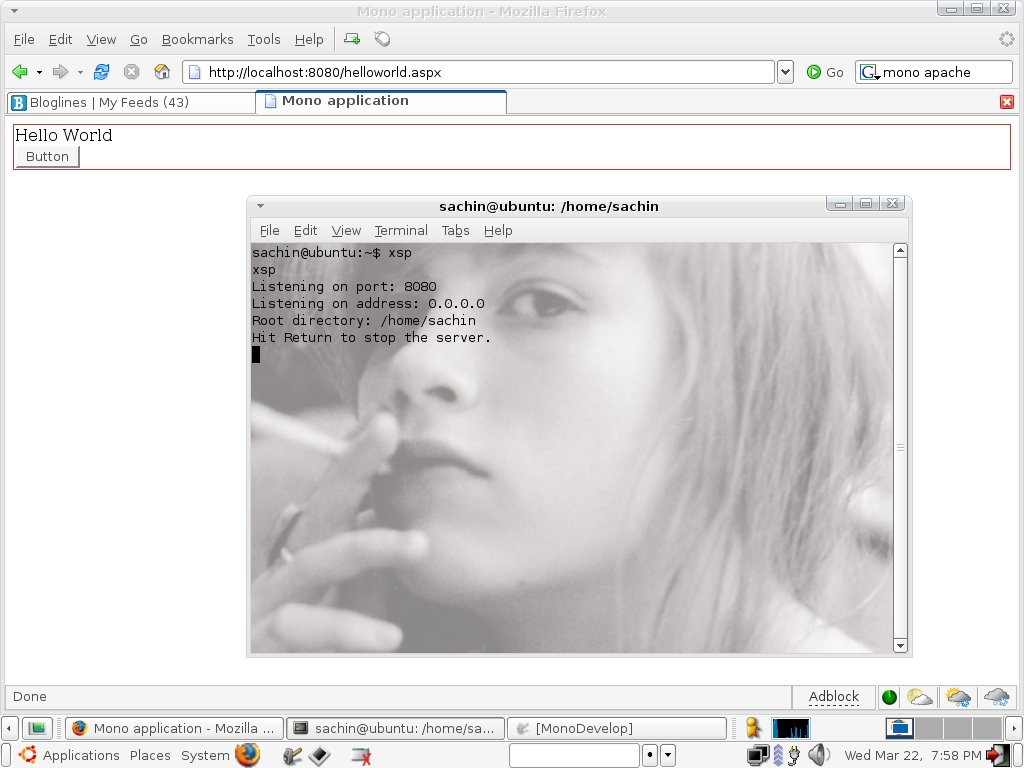
  • eXtras: The main reason to install Linux distro was to try out Mono, so I installed Mono and MonoDevelop (IDE for mono) and created a small ASP.Net web page in MonoDevelop. Mono comes with a lightweight web browser (much like Cassini) called xsp and voila the web page ran without any hitches, the only thing is MonoDevelop is still under development (well, so is mono) so you don't get support for code-behind pages yet.


monodevelop

HelloWorld in MonoDevelop


xsp and mono

Xsp and helloworld.aspx


  • Verdict: All in all a cool "geeky" OS but still not user-friendly enough for Average Joe to really give a scare to Windows.